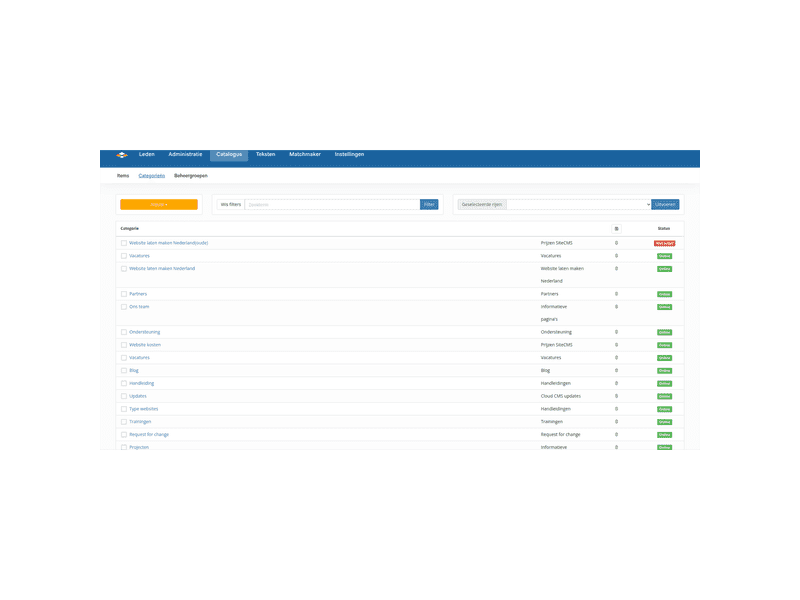
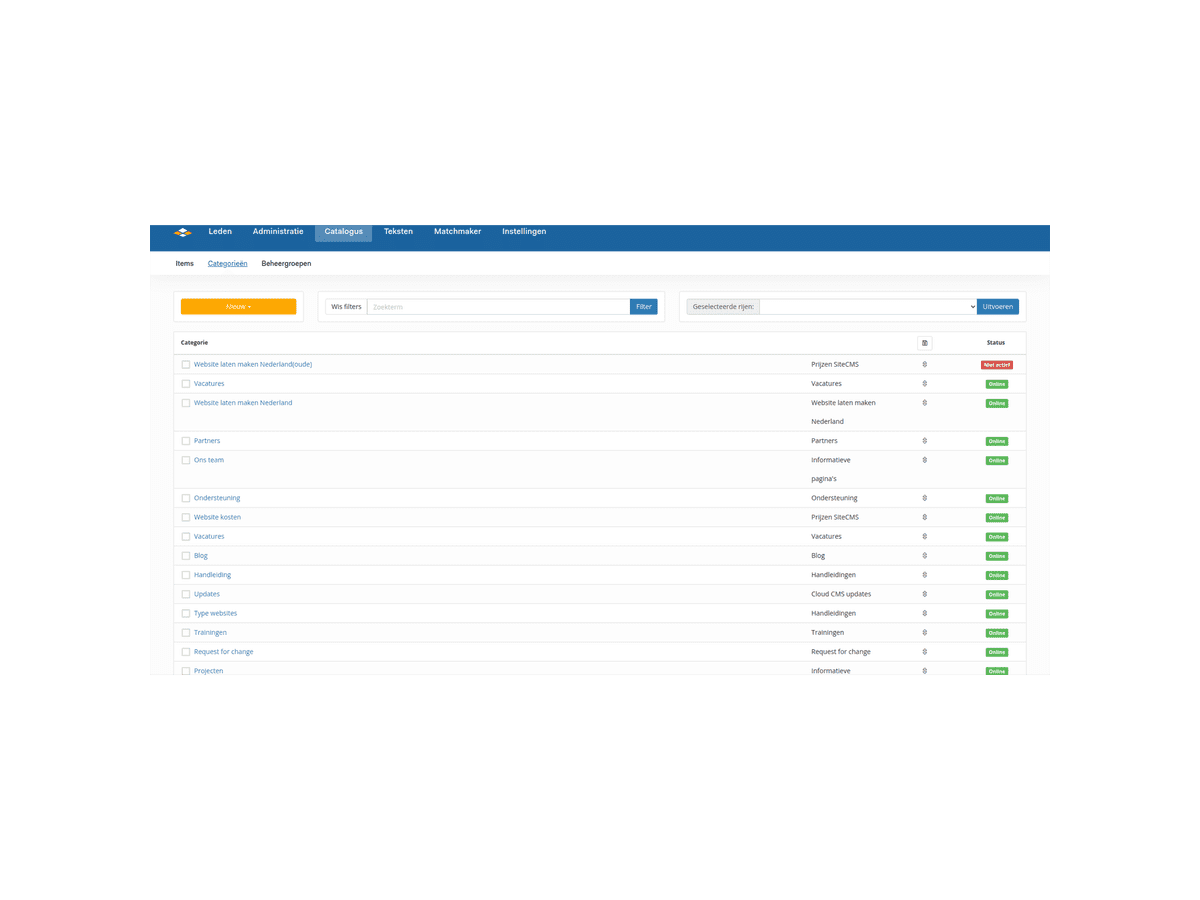
Great that you want to get started with the web catalog, this forms the basis of the content section of the website.
You want to provide information through your website. This content is important for your visitors and users. We provide this information through content pages in the web catalog.
Structure
Within the web catalog, you can create content pages, these are items. Items always belong to a certain category. A category can also have its own page. Here all items that fall within this category are displayed. Categories always fall within a management group. Within this management group, you determine all settings for the overviews and content pages.
Management Groups
Setting up the catalog starts with setting up the right management groups. After that, you can start creating categories. The management group determines the settings that apply to the underlying categories. Think carefully about which categories you want to use. Also, think about which settings you want to have for these categories, as a management group must be created for each category with separate settings.
Categories
Before items can be placed in a management group, a category must be created. A management group can also contain multiple categories when they share the same settings. Separate search filters and sorting options can be created for each category. Therefore, think about which search filters and sorting options belong to these categories.
Items
The final page with information is added to items. This can be a standalone text page like an 'about us' page, but it can also be part of a category like news articles.
Menu
After creating the right pages, it is important to ensure that visitors can reach the pages through the menu. It is important that visitors can easily navigate your website. Create a logical layout for this.
Each page has its own URL, with which you can create a menu item. You can create a menu item for a specific page, but also for an overview page of a category. Therefore, think carefully about which buttons you want to create for which pages and in which menu you want to place them.
Properties
Items can be provided with properties. These properties can be used in question blocks or search criteria, for example. The properties are obtained with a question, for example: What is the subject of the page? The questions are linked to a management group and must therefore be set for each management group. After that, you can answer the questions for each item. Therefore, think about which properties the items should get for each management group.
Question Blocks
A question block is a place where the properties of an item can be displayed. Per management group, you set up question blocks based on the properties within that management group. There are two places per management group to display the properties.
- Thumbnail: The thumbnail of an item is displayed on the overview page of a category. This is important because it helps visitors scan the overview. This way, they find the information they are looking for faster.
- Item page: These properties are then displayed on the content page itself. Since visitors are no longer searching here, you can use more extensive or detailed properties here.
It is also possible to set the same question block for the thumbnail and the item page.
Search Filters
When there are many items in a category, it can be useful to set up search filters. Visitors can then filter the overview based on certain properties. You can add these search filters based on the previously created questions. After that, you can set which search filters you want to display per category. Therefore, it is possible to display different filters for categories within the same management group.